How to Design a 2026 Digital Planner: Step-by-Step Guide for Beginners
As we quickly approach the end of the year, it’s time to start thinking about designing a 2026 digital planner if you haven’t already. If you’ve been dreaming about starting a digital stationery shop but aren’t totally convinced if it’s the right move for you, then our 60 day challenge to make the best use of the last two months of the year is a sign that now is the right time to take action!
That being said, welcome back to the second week of our 60 Day Set-Up Series, where I walk you through setting goals, 6 goal suggestions, then provide you with all the tips, tricks, and resources to make each goal happen.
This week, we’re going to tackle one of the biggest and most exciting goals you can set as an emerging shop – designing your first digital planner!
Join me as I break down exactly what’s involved in this process so that it’s exciting instead of intimidating.
Before we jump straight into the design process, let’s talk about one of the most important steps that’s oftentimes overlooked. Picking a design program is like house hunting – you have a list of non-negotiables and things you’d like to see in the place you live. You can decorate it, paint the walls, and add your own personal touches, but you wouldn’t want to live just anywhere in any house.
The same is true for the design program you choose – sure, you can build a digital planner using any design software – but you want to make sure it has all the non-negotiables and features you’re looking for before you commit. Your software is going to become like a digital home where you’ll spend a lot of your time, so it’s important that it works for you.
Consider these four aspects of a design software before making your final decision:
Ease of use — depending on how much time you have to spend designing, you may want to choose a program that is easier to get used to so you can focus on bringing your ideas to life instead of adjusting to the learning curve of a new program. If the software you choose is too technical and requires lots of time to become familiar with its different functions, your planner may not turn out looking as good as you were hoping.
Compatibility — some programs (like Apple Keynote) are optimized for specific operating systems and devices. For example, you can use Apple Keynote on a device that operates off of Windows, but you’ll have to use the web version, which doesn’t have as advanced of capabilities. Make sure you look at what devices are compatible with the program you select so that you can choose the one that works best for your products.
Master slides or master pages — to save time designing, master slides and master pages allow you to create templated layouts or pull from pre-made design options so you don’t have to create every slide from scratch. If you can create master slides or pages, then you can easily create each page for your planner without worrying about little things like alignment, consistency, and margins.
Hyperlinks — this can be a super tedious task if there isn’t an easy method to add hyperlinks to your planner in the program you choose. Hyperlinks allow you to click within your planner and be taken to different sections without having to scroll for what feels like forever. Certain design programs make this process super easy and efficient, whereas with others it can take a long time, so make sure you pick a program that works with how much time you have to spend hyperlinking.
Psst! You can learn more about my favorite design program and what makes it so great by clicking here.
👉 Take the guesswork out of picking the right program by joining Digital Planner Design Mastery – our self-paced online course that teaches you exactly how to design a planner inside Affinity Publisher. For this week only, save when you enroll! Grab the course and all it’s templates, workbooks, and bonuses by clicking here.
Step 2: Brainstorm Planner Pages
Once you've picked the perfect program, it's time to get to work designing your planner! This means it's time to think about how you want to organize your pages, what is necessary, and what additional features you want to include that will help your planner stand out and convince customers to complete their purchases!
Start by listing the pages you'll need. Nothing is off-limits! List out each page that's essential to your signature planning process. These pages can be anything from habit trackers and goal-setting worksheets to monthly and weekly calendar spreads. Take out your pen and paper (or iPad and Apple Pencil) and use this list as inspiration as you create your own outline of features:
Drag-and-drop functionality
Daily tasks
Habit tracker
Digital stickers
Budget and finance pages
Health and wellness pages
Customization options such as...
Light and dark mode
Vertical and horizontal layouts
Various color palette
Page view options such as...
Quarterly overview
Hourly breakdown on daily pages
Yearly and monthly overviews
Integrations with apps like iCal, Google Calendars, Google Tasks, Apple Reminders, etc.
Now that you have all your page ideas outlined in front of you, it's time to separate them into "needs" and "wants". These are pages that are essential to teaching your signature process and pages that would just be a nice bonus to users. We want to keep this planner simple so users can easily see the benefits of it and to keep you from feeling overwhelmed since it's your first planner!
Pro tip: You can always include your "want" pages in a future planner or sell them as an add-on once you launch your first product!
👉 Inside Digital Planner Design Mastery, we help you turn your “needs” list into a complete product plan — with guided templates, visual layouts, and design shortcuts that save hours. Learn more about the self-paced, online course by clicking here!
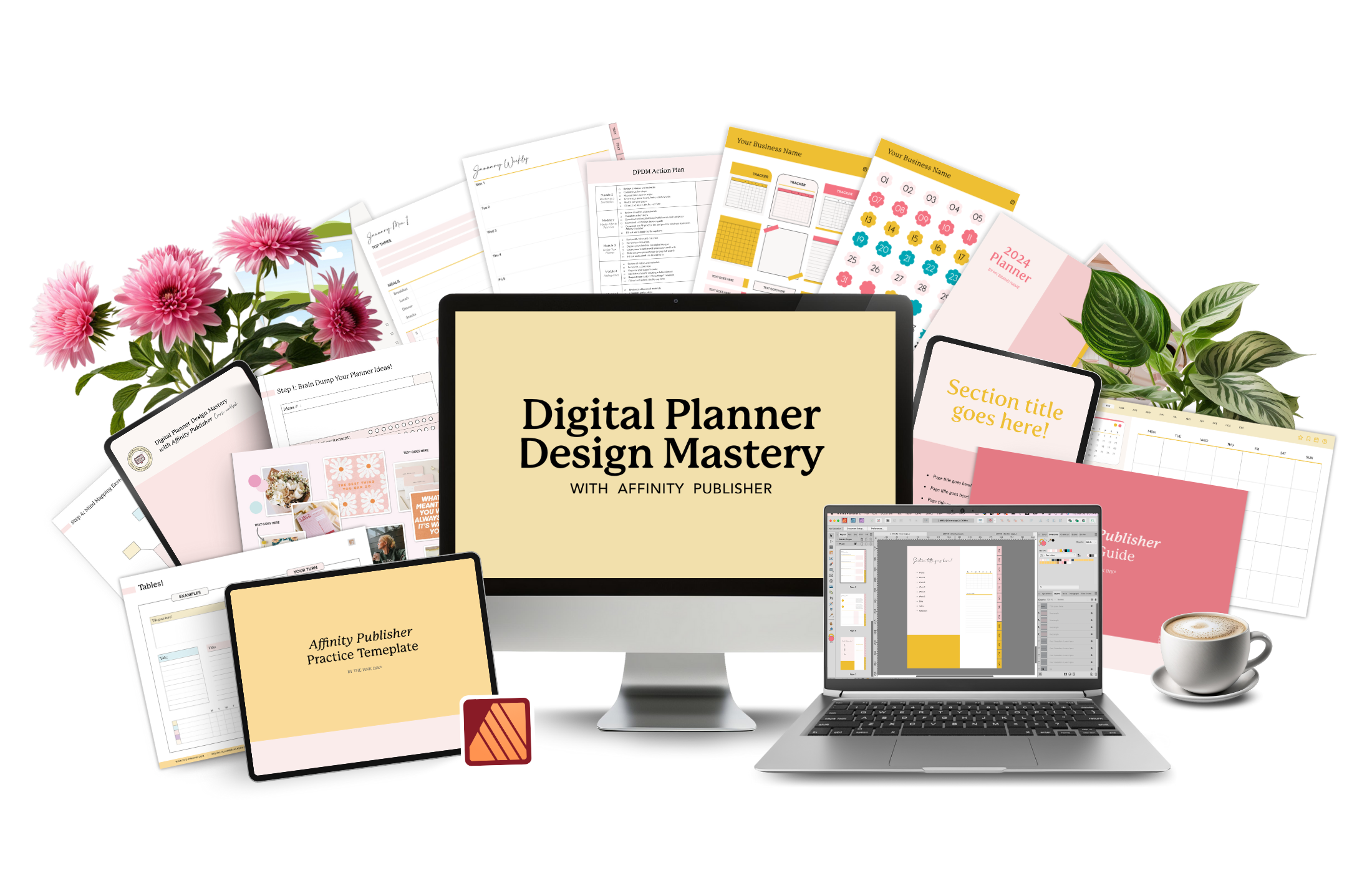
Master Digital Planner Design
Learn to create professional, clickable digital planners in Affinity Publisher. Step-by-step design training with Digital Planner Design Mastery
Step 3: Brainstorm Planner Pages
Once you've picked the perfect program, it's time to get to work designing your planner! This means it's time to think about how you want to organize your pages, what is necessary, and what additional features you want to include that will help your planner stand out and convince customers to complete their purchases!
Start by listing the pages you'll need. Nothing is off-limits! List out each page that's essential to your signature planning process. These pages can be anything from habit trackers and goal-setting worksheets to monthly and weekly calendar spreads. Take out your pen and paper (or iPad and Apple Pencil) and use this list as inspiration as you create your own outline of features:
Drag-and-drop functionality
Daily tasks
Habit tracker
Digital stickers
Budget and finance pages
Health and wellness pages
Customization options such as...
Light and dark mode
Vertical and horizontal layouts
Various color palette
Page view options such as...
Quarterly overview
Hourly breakdown on daily pages
Yearly and monthly overviews
Integrations with apps like iCal, Google Calendars, Google Tasks, Apple Reminders, etc.
Now that you have all your page ideas outlined in front of you, it's time to separate them into "needs" and "wants". These are pages that are essential to teaching your signature process and pages that would just be a nice bonus to users. We want to keep this planner simple so users can easily see the benefits of it and to keep you from feeling overwhelmed since it's your first planner!
Pro tip: You can always include your "want" pages in a future planner or sell them as an add-on once you launch your first product!
👉 Inside Digital Planner Design Mastery, we help you turn your “needs” list into a complete product plan — with guided templates, visual layouts, and design shortcuts that save hours. Learn more about the self-paced, online course by clicking here!
Step 4: Build a Roadmap & Sketch Your Pages
Also known as a wireframe, a roadmap is a rough idea of the pages and layout of your planner. Whether it's your daily routine, outlook on life, or the niche you're looking to help, remembering what makes your idea unique can help you decide on page types and layouts. This will serve as your roadmap to sketch and bring your planner to life.
Set a timer for 10 minutes and sketch out each page from the "needs" list you've put together. Let your imagination run wild! We want this planner to turn heads, so don't be afraid to come up with all-new layouts that have never been seen before. Come up with a few layout variations for your pages so that you can pick the one that works best with the rest of your planner once you've designed everything. Refer back to your roadmap so you don’t miss any page types as you sketch everything out. Make sure you include things that honor the lifestyle of your customers, their routines, habits, and goals.
Start your sketch by creating rectangles to represent the pages. Then use basic shapes to represent calendars, lines, boxes, and checklists. While sketching, imagine where you want your tabs to be located on the side of your planner. Don't forget to think about how you're going to format your planner – will it be horizontal or vertical? Dated or undated? A rough draft is just that – rough! Don't stress about whether or not it’s perfect. These sketches are what you'll be using to digitize the design.
Step 5: Structure & Style Your Planner Pages
Now that your pages are ready, it’s time to pull everything together in a way that makes sense. Your goal should be to create a layout that feels natural to navigate and fits the lifestyle of your target audience. You want users to open your planner and instantly feel like it was made just for them.
Psst – not exactly sure who your target audience is? Take a look at our week 1 blog post from this series to find your winning niche!
One of the easiest ways to choose how you’re going to assemble your digital planner is by using the sticky note method. It’s a low-pressure way to test different layouts before committing to anything final.
Here’s how to get started:
Write each page idea (like “Monthly Overview,” “Habit Tracker,” or “Goal Reflection”) on its own sticky note
Group similar kinds of pages together and move them around until the order feels logical
Think about how your customer would naturally move through your planner to choose what they should see first and what should come next
Once you’ve locked in the flow, it’s time to add style and structure. This is where your creative side shines. Tabs are one of the most important design features to decide on now, since they’ll eventually hold your hyperlinks and guide users through your planner (more on that in just a minute).
When designing your tabs:
Choose where they’ll go — along the side, top, or bottom of your pages
Decide on the shape, color, and size so they match your overall theme
Keep readability in mind — short, clear labels work best
Last but not least, if you haven’t nailed down a theme yet, this is the perfect time to do it. Your theme is what ties everything together visually. Think of it as your planner’s personality! It can be bright and fun or modern and minimalist, but most of all, it needs to be attractive to your target audience.
Finally, double-check that your layout includes the essentials:
A front and back cover
A full-year overview
Monthly pages
Weekly or daily spreads
A structured and styled planner is one that your dream customers will be excited to use everyday because not only is it beautiful, but it’s also functional.
Step 6: Develop an Effective Hyperlinking Strategy
As we've mentioned briefly, hyperlinking is what makes a digital planner work. Think of it as the wiring behind the walls of your home, you don’t see it, but it’s what makes everything light up. Just like electricity powers your home, hyperlinks bring your planner to life. Without them, it’s like flipping a switch and nothing happening. Your users would be stuck scrolling endlessly from page to page instead of jumping seamlessly between sections, which can get frustrating fast.
This process can be intimidating and tedious, but don’t worry! By having a roadmap in place, you’ll avoid the chaos that comes from having dozens of pages and tabs so you don’t have to spend hours backtracking and double checking your work.
Here’s a simple way to map it out:
Write down every page in your planner on a sheet of paper or digital note
Next to each page, list what elements you want to link (like tabs, icons, text boxes, or buttons)
Sketch a quick “mind map” that shows how these pages connect. For example, how your monthly tab leads to each week or how your daily pages link back to your dashboard or goals section
Taking the time to outline this first ensures that your navigation feels natural and intuitive to users. They’ll be able to move effortlessly through your planner without ever feeling lost.
Learn how to add hyperlinks in four of the most popular digital planner design programs in this blog post.
💬 Inside Digital Planner Design Mastery, I show you exactly how to hyperlink your planners efficiently — even if you’re a beginner. You’ll learn professional shortcuts and workflow strategies to save hours of trial and error.
Step 7: Export Your Planner for Testing
Once you've created all your hyperlinks inside your planner, it's time to move on to the final list of tasks before getting your planner ready to sell! First things first, you'll want to export your planner so you can try it out for yourself. Put yourself in the shoes of your potential customers and try to use your planner in the same way they'll be doing. You can start by exporting it into a notetaking app like Goodnotes! To do this, follow these steps:
Export the file as a PDF
Send this planner file to your iPad or tablet (through email, airdrop, Dropbox, or Google Drive)
Open the file on your iPad and share it to Goodnotes (or your notetaking app of choice) as a new notebook
Now you can spend a few days, a week, or even a month using the planner! As you use your planner, take note of the features you love and ones that you could improve. If there are no glitches, broken links, or issues you need to fix, then you can move on to launching your planner! There will always be things that you want to improve in your planner, so it's important to remember that done is better than perfect and you can always collect your ideas to use for your next product.
Wait a second – launching a digital planner? That can sound like a lot of work, and maybe you feel a little intimidated by the idea of spending all this time creating a product and it still not being everything you need to do to sell your product.
That’s why Goal #3 of the 60-Day Set Up Series is all about launching your Etsy Shop. Tune back into the blog next week for a step-by-step breakdown of everything that’s involved in building a bestselling shop. I’ll be right by your side for the entire process, walking you through each step. Remember, this series is about fully equipping you to reach your goals and set you up for success in 2026. So don’t be overwhelmed, but take action today and see where the next year takes you!
⭐ Ready to go all in on digital planner design?
Digital Planner Design Mastery is a complete, self-paced course that teaches you how to design, hyperlink, and export your own digital planners from start to finish.